How to Safely Back Up Travel Photos on the Go?

Keep two copies before moving on. Leave the photos on your phone or camera, and make a second copy in cloud storage or on a separate storage device. Before clearing space, confirm the copy finished and open a few photos from it. A half-finished upload can look reassuring while your pictures are still only on the device you could lose.
The best method depends on whether you have a trusted internet connection, enough room in your cloud account or storage device, and enough battery to finish copying. Your camera or phone also needs to connect to the storage device if you’re backing up without internet. Keep private photos protected if a device goes missing. The steps below help you choose a method and check that your pictures are safe before you continue your trip.

- TLR Rank7.5
TLR Rank is a ranking system developed by TravelLuggageReviews.com. TLR Rank has no relationship or impact from any manufacturers or sales agent websites. Learn more
- BrandAmazon Essentials
Last update on 2026-11-13 / Affiliate links / Images, Product Titles, and Product Highlights from Amazon Product Advertising API
The Short Version
- Keep the original photos on your phone or camera until you have confirmed a second copy is complete and opens.
- Use cloud storage when you have a trusted internet connection, enough account space, and time for the upload to finish.
- Without internet, copy photos to a separate storage device only if your phone or camera can connect to it and you can check the copied files.
- Keep the original and backup in separate places when you can. A second copy in the same lost bag may not help if the bag disappears.
Why One Copy on Your Travel Device Is Risky
A phone or camera can hold every photo from a trip, but it is still one device. If it is lost, stolen, damaged, or runs out of space, the photos on it may be hard or impossible to recover. A backup gives you another copy somewhere separate from the original.
A separate copy can be in an online storage account or on a storage device you carry. A copy is not useful just because an app says it started uploading or a cable was connected. You need to confirm the transfer finished and that the copied photos can open.
Think about where each copy is. If your phone and backup device are both in the same bag, losing that bag could take both copies. When practical, keep them apart, such as carrying the phone with you and keeping the backup device secured elsewhere.
Copy and Check Your Photos, Step by Step
- Choose where the second copy will go. Pick cloud storage if you have a reliable, trusted connection and enough space in the account. Pick a separate storage device if you need to work offline and your phone or camera can connect to it. If neither option is ready, keep the originals and make the backup when you have what you need.
- Check space before you begin. Look at the available space on your phone or camera, your cloud account, or the storage device. If the destination is nearly full, the transfer may stop before every photo is copied. Make room only by removing files you no longer need, not by deleting the travel photos you are trying to protect.
- Connect to a safe source of power if needed. A large batch of photos can take time to copy, and a low battery can interrupt the process. Charge your phone, camera, or storage device before starting, or keep it connected to a suitable power source while the transfer runs. Do not begin a long transfer if you may need the battery for directions, calls, or an emergency.
- Start the copy and leave the original files alone. Follow the steps shown by your phone, camera, storage device, or cloud app. Keep the device awake if the instructions require it, and avoid unplugging a cable or switching apps if that could interrupt the transfer. A progress message means work is under way, not necessarily finished.
- Wait for a clear completion message. Look for a message that says the upload or copy is complete. If the app shows a list of items waiting to upload, the backup is still unfinished. A weak connection, a full account, a closed app, or a low battery can leave some photos behind.
- Open photos from the backup location. Find several copied photos in the cloud account or on the separate storage device and open them there. Check a few from the beginning, middle, and end of the group, including a video if you made one. Seeing thumbnails alone is not enough if the full files will not open.
- Keep the original until you are sure. Do not clear the phone or camera just because the backup app shows activity. Delete originals only after the copy is complete, the files open from the backup, and you are comfortable with how that backup is protected.
If an upload stalls, keep the originals on the device and try again later on a trusted connection. If a device copy stops, check the cable, available space, and connection instructions before restarting. Do not assume the missing files will appear on their own.
Cloud Backup or a Separate Storage Device?
Cloud backup works well when you have a trusted internet connection. It can put a copy somewhere other than your travel device, which helps if the phone or camera is lost. Before relying on it, check that the account has enough space and that the app is set to include the photos you want saved.
Cloud copying may take longer when the connection is weak or unavailable. Hotel or public networks can be shared, and you may not want to send private photos over a connection you do not trust. Wait for a connection you are comfortable using, and check the account afterward to confirm the files arrived.
A separate storage device works well when internet is unavailable. It can hold a copy while you are between destinations, but the connection depends on the phone or camera and the storage device. Check the device instructions before the trip so you know what cable, adapter, app, or power source it needs. Do not assume a camera or phone will connect to every storage device.
A separate device can also be lost or damaged, so it should not become the only place your photos exist. If you have both a cloud copy and a device copy, keep them apart when possible. If you can make only one backup during the day, make sure it is complete and openable before you rely on it.
When Battery, Space, or Internet Is Limited
- Low battery: Keep the original photos on the phone or camera. Charge before a large transfer, or copy only the most important new photos if you have enough power and can confirm the copy worked. Save a full transfer for a safe place to charge.
- Little space on the phone: Check the destination’s available space before copying. If you cannot make room safely, do not delete originals to force an upload. Keep taking only the photos you can store until you can complete and verify a backup.
- No internet: Use a separate storage device only if your phone or camera can connect to it. Follow its instructions, wait for the transfer to finish, and open copied files from the destination. If you cannot make a verified copy, keep the originals and wait for a suitable connection.
- Limited time between stops: Start with the latest photos that would be hardest to replace, then finish the rest when you have time. Mark or note which group has a confirmed backup so you do not mistake an unfinished batch for a complete one.
- Several devices: Keep track of which camera or phone holds each set of photos. A backup from your phone does not automatically include files still on a camera card. Copy and confirm each source separately.
Do not leave a phone, camera, or storage device baking in direct sun or sitting where it could get wet. If a device becomes unusually hot, looks damaged, or behaves strangely during a transfer, stop the copy and follow the manufacturer’s safety instructions. Do not keep charging or connecting a device that appears damaged.
Before You Delete Any Originals
Deleting photos is the step most likely to turn a shaky backup into a permanent loss. Use this checklist before clearing space on a phone, camera, or camera card.
- Does the backup location show that the transfer is complete, with no photos still waiting?
- Can you open several copied files from the backup itself, rather than from the original device?
- Did you check files from the full group you meant to copy, including the latest photos and any videos?
- Is the backup account or storage device yours to access, and do you know how to get back into it?
- Would you still have a copy if the phone, camera, bag, or storage device were lost?
If any answer is no, keep the originals. If a backup is missing photos, try the copy again while the originals remain available. If the original device is damaged or files have disappeared, stop saving new material to it when possible and seek help from the device maker or a qualified data-recovery service. Avoid apps or steps that promise recovery unless you understand what they will change.
Keep Private Photos Safer
Use a screen lock on your phone and a strong, private password for the account that holds your cloud photos. Do not share that password, and be careful with shared computers or devices where someone else may still be signed in. If you use a shared device, sign out when you finish and avoid leaving copies in a public folder.
For sensitive photos, think about who could access the backup if your phone or storage device went missing. Use privacy and account-protection settings offered by the service, and read its instructions before enabling extra protection. Keep recovery details somewhere safe, not only on the phone you are trying to protect.
If a device or account is lost, use the service’s account-recovery and lost-device steps as soon as you can from a device you trust. Change the account password if you think someone else may know it. If you cannot regain access or believe private information has been exposed, contact the service provider for help.
FAQs
What is the easiest way to back up travel photos while I’m traveling?
Cloud backup is often the simplest option when you have a trusted internet connection, enough account space, and time for the upload to finish. Turn on the photo backup feature you intend to use, then check that the newest photos appear in the account. If the connection is unreliable, keep the originals and make a separate copy when you can confirm it worked.
Can I back up photos without internet?
Yes, if your phone or camera can connect to a separate storage device. The exact connection depends on the devices, so check their instructions before you travel. Confirm the transfer finished and open files from the storage device before treating it as a backup.
How can I tell whether my photos really copied?
Wait for a clear completion message, then find and open several files from the backup location. Check photos from different points in the group, not only the first one. If the files do not appear or open, keep the originals and copy them again.
Should I delete photos from my phone or camera after copying them?
Only after the second copy is complete, opens correctly, and is somewhere you can access later. If you have not checked the backup, do not delete the originals to make room. When possible, keep another copy in a separate place so one lost device does not take every copy with it.
Related guides: best travel backpack for bad back and best travel backpack for back pain.
See also: how to safely store your passport and valuables in hotels.


Best Affordable Carry On Luggage 2026 - 11 Most Loving

The 12 Best Carry On Luggage For Bad Back 2026 - Top Choices

Best Lightest carry on luggage with wheels in 2026

Top Airport Traveling Suitcases: Our 11 Best Picks
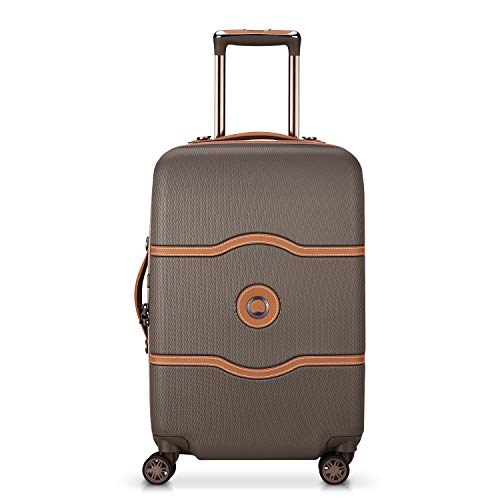
The Best Delsey Paris Luggage Set 2026
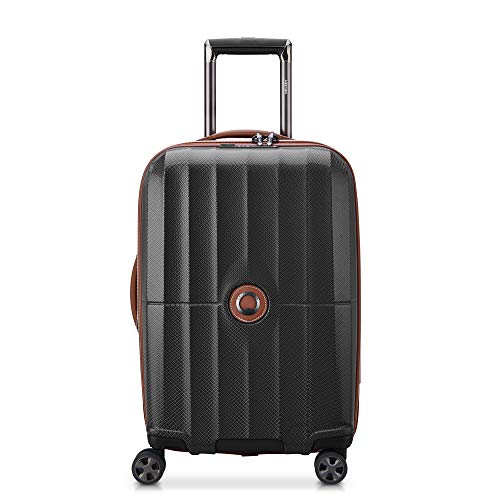
Top 10 Delsey Softside Luggage Picks for Stress-Free Travel

11 Best Guest Room Luggage Rack of 2026 To Protect Clean Bedding

11 Best Grom Luggage Rack of 2026 For Direct Bolt-On Fit