How to Use Google Maps Offline Without Internet?

Before leaving Wi-Fi or phone service, open Google Maps and download the area you’ll need. The map won’t save itself just because you searched for a hotel or set a route, so save it while you’re still online.
Offline driving directions can work when your full route fits inside the saved area. Walking, cycling, and public transit directions may not be available, and live traffic won’t update without internet. The saved map also needs to be available and current, so check that it covers your starting point and destination before you head out. Here’s how to save it and use it on the road.

- TLR Rank9.7
TLR Rank is a ranking system developed by TravelLuggageReviews.com. TLR Rank has no relationship or impact from any manufacturers or sales agent websites. Learn more
- BrandSweetcrispy

- TLR Rank7.6
TLR Rank is a ranking system developed by TravelLuggageReviews.com. TLR Rank has no relationship or impact from any manufacturers or sales agent websites. Learn more
- BrandN/A

- TLR Rank7.5
TLR Rank is a ranking system developed by TravelLuggageReviews.com. TLR Rank has no relationship or impact from any manufacturers or sales agent websites. Learn more
- BrandAmazon Essentials

- TLR Rank7.1
TLR Rank is a ranking system developed by TravelLuggageReviews.com. TLR Rank has no relationship or impact from any manufacturers or sales agent websites. Learn more
- BrandN/A
Last update on 2026-11-13 / Affiliate links / Images, Product Titles, and Product Highlights from Amazon Product Advertising API
What Google Maps Can and Cannot Do Offline
A saved map is a copy of a selected area on your phone. It lets Google Maps show roads and places inside that area when your phone has no internet connection. You must save the area before service disappears. Searching for a route while you still have internet does not automatically save the map or guarantee that the route will work later.
Offline use is most helpful for driving. If your starting point and destination are inside the saved area, Google Maps may be able to give you driving directions without internet. Your phone can still find its location through GPS, so the moving blue dot can show where you are on the saved map. GPS does not provide live traffic or download streets that you did not save.
Some features need an internet connection. Live traffic, public transit directions, and walking or cycling directions may not be available offline. You may also find that business details, current opening hours, or new road changes are missing. Treat the saved map as a useful road map, not a complete replacement for every feature in Google Maps.
Think about the last part of your trip before you leave. A map that covers the airport but not the hotel will not help much after you land and lose Wi-Fi. If you need to walk from a station or take a bus, save the area for a backup view, but arrange to have directions available another way while you still have service.
Download the Area Before You Lose Internet
Connect to Wi-Fi or a reliable mobile connection before saving a map. Downloading a large area can use a lot of data and phone storage, so Wi-Fi is a sensible choice when it is available. Keep Google Maps open while the download finishes, and do not assume the map is ready just because you tapped the download button.
Open the Google Maps app and make sure you are signed in if the app asks. Tap your profile picture or initial near the search bar, then choose Offline maps. The wording or placement can vary slightly between phones and app versions.
Tap the option to select your own map or download a new map. You will see a box over the map. Move the map so the box covers the places you need, then use two fingers to make the box larger or smaller.
Include your starting point, destination, and the roads between them. For a trip from an airport to a hotel, include the airport, the hotel, and the whole likely driving route. If you might take a different road, widen the saved area to include that route too.
Check the map name or preview, then tap Download. Wait until Google Maps shows that the download is complete. If the app offers a choice to download over Wi-Fi only, leave that setting on when you want to avoid using mobile data.
You can also start from a place name. Search for a city or destination, open its place details, and look for the menu option to download an offline map. Google Maps will show the area it plans to save. Adjust the box before downloading if it leaves out your hotel, station, or the road you expect to take.
The saved map covers an area, not a single route. That distinction matters if your route crosses the edge of the box. A route can begin and end in the saved area yet still take an unavailable road outside it, so save a generous area around the whole journey instead of drawing a tight box around the destination.
Phone storage can also affect the download. If Google Maps says there is not enough room, remove unneeded offline maps or other files, then try again while online. Keep the app open until it confirms completion. If you need a place name or street number, write it down or save it separately in case a search result is not available offline.
Open the Saved Map and Get Driving Directions
After you lose internet, open Google Maps normally. The app should use your downloaded map when you are inside its saved area. You can also open your profile menu and tap Offline maps to see the maps stored on your phone and confirm which area they cover.
Enter your destination in the search bar, or find it on the map. If the app cannot find a business name offline, try the street address or locate the destination by moving around the saved map.
Tap Directions and choose the car option. Check that the starting point is where you are, rather than an old location or a place entered before service disappeared.
Review the route line and confirm that it stays inside the downloaded area. Start navigation if Google Maps offers it. Keep the phone where you can see it safely, and follow local road signs if the map appears out of date or unclear.
If you are already at the airport or station, GPS may take a little time to settle on your location, especially indoors. Move somewhere with a clearer view of the sky if it is safe and practical. The map can still show your location outdoors without mobile service, but it cannot supply fresh road information from the internet.
Do not rely on an offline map for a walking connection or a bus transfer. Google Maps may show some place information or a street layout, but walking, cycling, and transit directions may not be available without internet. Before you go, note the station exit, hotel address, or transit instructions you will need. If a route is unavailable, connect to Wi-Fi or mobile service when you can and request directions again.
Offline directions can also be less flexible than online directions. Without current traffic information, Google Maps cannot steer you around a new traffic jam in real time. If a road is closed, follow posted detours and safe local guidance rather than trying to force the route shown on your screen.
Check Coverage, Updates, and Offline Limits
Before leaving Wi-Fi, check the saved map itself rather than trusting a route you searched earlier. Open Offline maps, select the map, and look at the area shown. Zoom in enough to recognize the roads around your destination and the likely route.
Destination covered: Confirm the hotel, airport, station, or other final stop sits inside the saved area.
Route covered: Follow the likely route on the map and look for any section that crosses beyond the saved boundary. Expand the area if it does.
Map downloaded: Confirm Google Maps lists the map as saved, not still downloading or waiting for an update.
Enough storage: If the download failed, free up phone space and download again while connected.
Backup details: Keep the destination address and any walking or transit instructions somewhere you can read without opening a live search.
Offline maps can expire or need an update. In the offline maps screen, look for a message that a map needs updating and follow the app's prompt while you still have internet. Google Maps may update maps automatically when the phone is connected, depending on your settings, but check rather than assuming that happened.
If directions do not appear, first check that the destination and your current location are inside the downloaded area. Then confirm that the saved map is present and current. Try a car route, since walking, cycling, and transit directions may not work offline. If the map is missing or expired, connect to Wi-Fi or mobile service and download or update it before continuing.
When no connection is available and the route still will not load, use the saved map to orient yourself and follow road signs. Ask airport, station, or hotel staff for help if you cannot safely identify the route. A printed address or note can be more useful than repeatedly refreshing a map that has no internet connection.
FAQs
Can I save a Google Maps route for offline use?
Google Maps saves an area, not just a route. Download an area large enough to include your starting point, destination, and the roads you may use. Then request driving directions within that area after you lose internet.
Will Google Maps show my location without internet?
Your phone can use GPS to show your location on a downloaded map without mobile service or Wi-Fi. GPS can be slower to locate you indoors or where the view of the sky is blocked. The map still needs to be saved in advance.
Can I use offline Google Maps for walking or public transit?
Do not count on walking, cycling, or transit directions being available offline. Save the map for a street view, but note the route or transfer details while you still have internet. Live traffic and other current information also require a connection.
Related guides: best luggage tracker for google pixel.


Best Affordable Carry On Luggage 2026 - 11 Most Loving

The 12 Best Carry On Luggage For Bad Back 2026 - Top Choices

Best Lightest carry on luggage with wheels in 2026

Top Airport Traveling Suitcases: Our 11 Best Picks
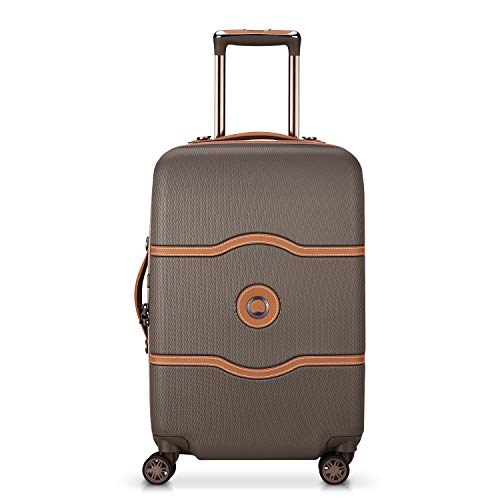
The Best Delsey Paris Luggage Set 2026
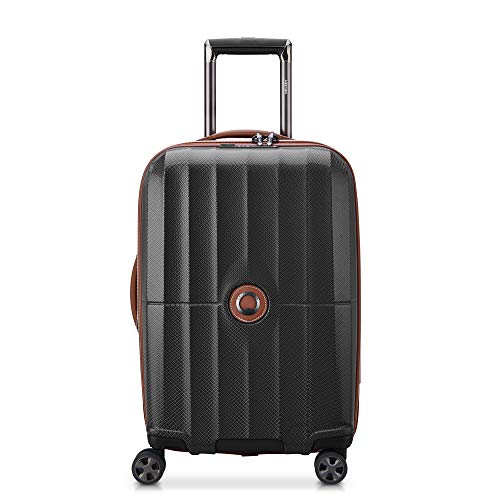
Top 10 Delsey Softside Luggage Picks for Stress-Free Travel

11 Best Guest Room Luggage Rack of 2026 To Protect Clean Bedding

11 Best Grom Luggage Rack of 2026 For Direct Bolt-On Fit